

314
A Installation and Use of Python
A.4 How to Write and Run a Python Program
You have basically three choices to develop and test a Python program:
1. use an IDE like Spyder, which offers a window with a text editor and functionality to run programs and observe the output
2. use a text editor and a terminal window
3. use the Jupyter notebook
A.4.1 Spyder
Spyder is a graphical application for developing and running Python programs,
available on all major platforms. Spyder comes with Anaconda and some other
pre-built environments for scientific computing with Python. On Ubuntu it is
conveniently installed by sudo apt-get install spyder.
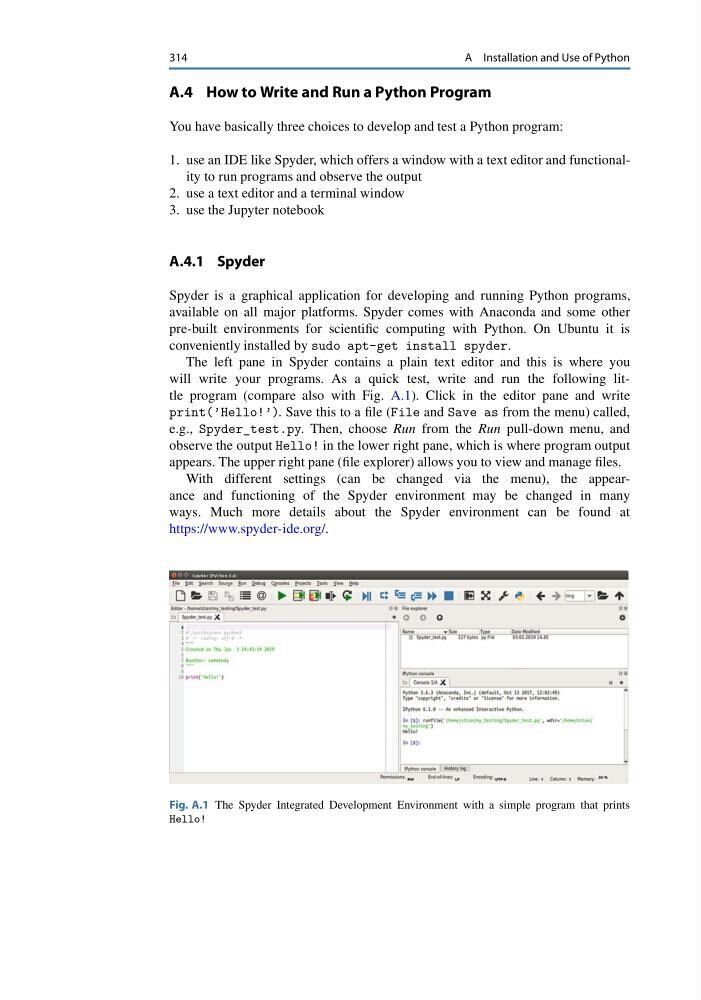
The left pane in Spyder contains a plain text editor and this is where you
will write your programs. As a quick test, write and run the following little program (compare also with Fig. A.1). Click in the editor pane and write
print(’Hello!’). Save this to a file (File and Save as from the menu) called,
e.g., Spyder_test.py. Then, choose Run from the Run pull-down menu, and
observe the output Hello! in the lower right pane, which is where program output
appears. The upper right pane (file explorer) allows you to view and manage files.
With different settings (can be changed via the menu), the appearance and functioning of the Spyder environment may be changed in many
ways. Much more details about the Spyder environment can be found at
https://www.spyder-ide.org/.
Fig. A.1 The Spyder Integrated Development Environment with a simple program that prints
Hello!
A Installation and Use of Python
A.4 How to Write and Run a Python Program
You have basically three choices to develop and test a Python program:
1. use an IDE like Spyder, which offers a window with a text editor and functionality to run programs and observe the output
2. use a text editor and a terminal window
3. use the Jupyter notebook
A.4.1 Spyder
Spyder is a graphical application for developing and running Python programs,
available on all major platforms. Spyder comes with Anaconda and some other
pre-built environments for scientific computing with Python. On Ubuntu it is
conveniently installed by sudo apt-get install spyder.
The left pane in Spyder contains a plain text editor and this is where you
will write your programs. As a quick test, write and run the following little program (compare also with Fig. A.1). Click in the editor pane and write
print(’Hello!’). Save this to a file (File and Save as from the menu) called,
e.g., Spyder_test.py. Then, choose Run from the Run pull-down menu, and
observe the output Hello! in the lower right pane, which is where program output
appears. The upper right pane (file explorer) allows you to view and manage files.
With different settings (can be changed via the menu), the appearance and functioning of the Spyder environment may be changed in many
ways. Much more details about the Spyder environment can be found at
https://www.spyder-ide.org/.
Fig. A.1 The Spyder Integrated Development Environment with a simple program that prints
Hello!