

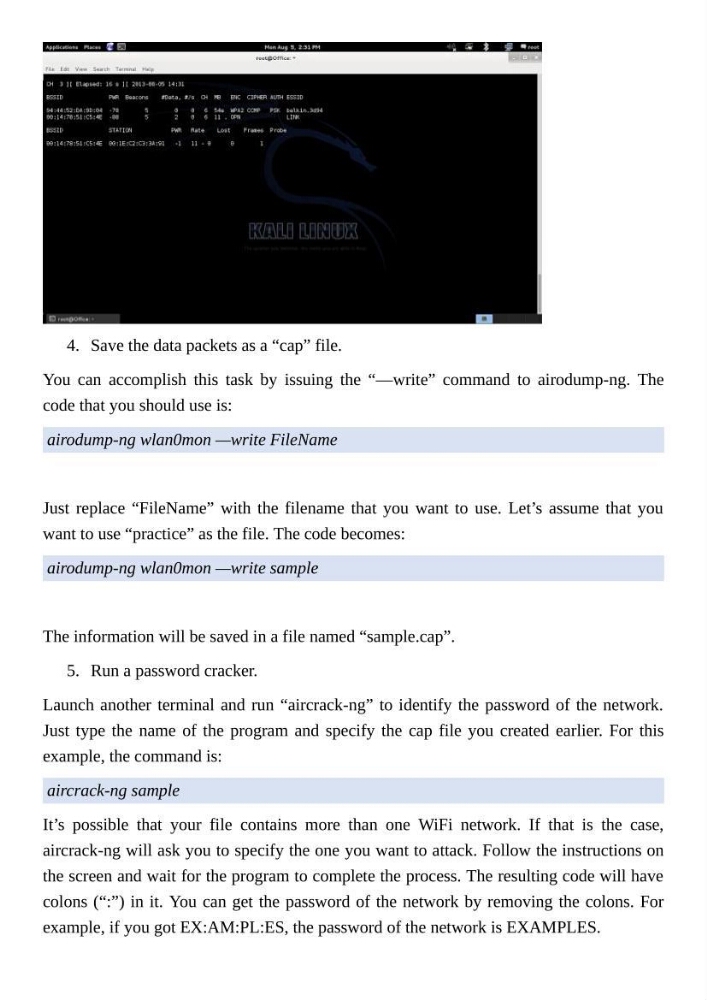
4. Save the data packets as a “cap” file.
You can accomplish this task by issuing the “—write” command to airodump-ng. The
code that you should use is:
airodump-ng wlan0mon —write FileName
Just replace “FileName” with the filename that you want to use. Let’s assume that you
want to use “practice” as the file. The code becomes:
airodump-ng wlan0mon —write sample
The information will be saved in a file named “sample.cap”.
5. Run a password cracker.
Launch another terminal and run “aircrack-ng” to identify the password of the network.
Just type the name of the program and specify the cap file you created earlier. For this
example, the command is:
aircrack-ng sample
It’s possible that your file contains more than one WiFi network. If that is the case,
aircrack-ng will ask you to specify the one you want to attack. Follow the instructions on
the screen and wait for the program to complete the process. The resulting code will have
colons (“:”) in it. You can get the password of the network by removing the colons. For
example, if you got EX:AM:PL:ES, the password of the network is EXAMPLES.
You can accomplish this task by issuing the “—write” command to airodump-ng. The
code that you should use is:
airodump-ng wlan0mon —write FileName
Just replace “FileName” with the filename that you want to use. Let’s assume that you
want to use “practice” as the file. The code becomes:
airodump-ng wlan0mon —write sample
The information will be saved in a file named “sample.cap”.
5. Run a password cracker.
Launch another terminal and run “aircrack-ng” to identify the password of the network.
Just type the name of the program and specify the cap file you created earlier. For this
example, the command is:
aircrack-ng sample
It’s possible that your file contains more than one WiFi network. If that is the case,
aircrack-ng will ask you to specify the one you want to attack. Follow the instructions on
the screen and wait for the program to complete the process. The resulting code will have
colons (“:”) in it. You can get the password of the network by removing the colons. For
example, if you got EX:AM:PL:ES, the password of the network is EXAMPLES.