

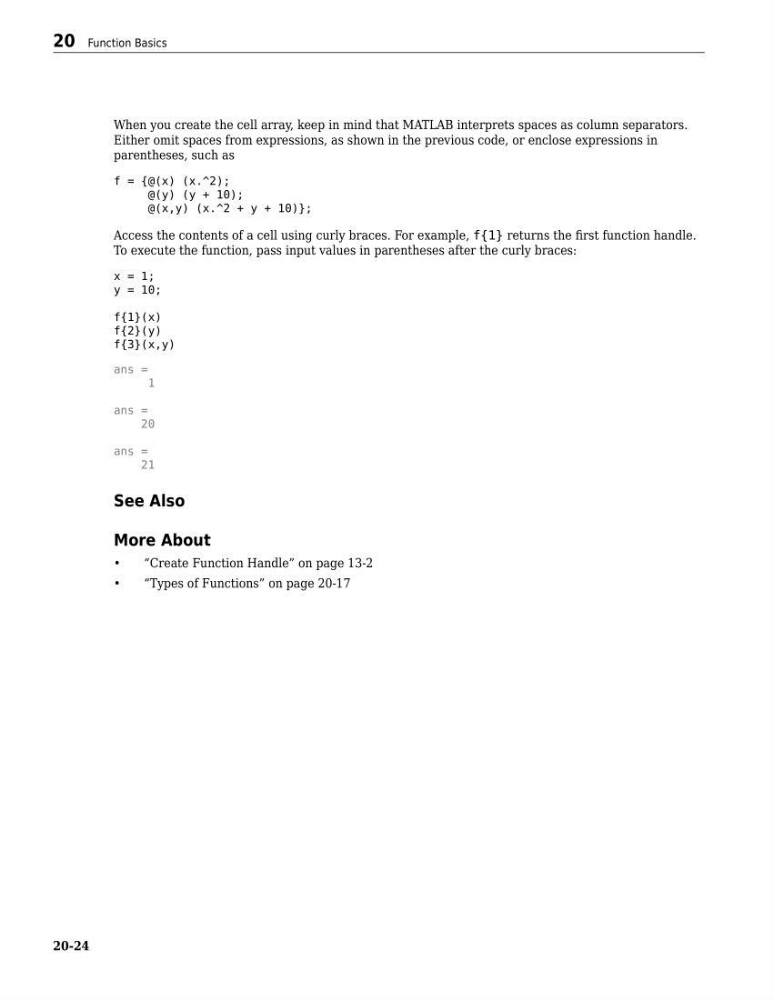
When you create the cell array, keep in mind that MATLAB interprets spaces as column separators.
Either omit spaces from expressions, as shown in the previous code, or enclose expressions in
parentheses, such as
f = {@(x) (x.^2);
@(y) (y + 10);
@(x,y) (x.^2 + y + 10)};
Access the contents of a cell using curly braces. For example, f{1} returns the first function handle.
To execute the function, pass input values in parentheses after the curly braces:
x = 1;
y = 10;
f{1}(x)
f{2}(y)
f{3}(x,y)
ans =
1
ans =
20
ans =
21
See Also
More About
•
“Create Function Handle” on page 13-2
•
“Types of Functions” on page 20-17
20 Function Basics
20-24
Either omit spaces from expressions, as shown in the previous code, or enclose expressions in
parentheses, such as
f = {@(x) (x.^2);
@(y) (y + 10);
@(x,y) (x.^2 + y + 10)};
Access the contents of a cell using curly braces. For example, f{1} returns the first function handle.
To execute the function, pass input values in parentheses after the curly braces:
x = 1;
y = 10;
f{1}(x)
f{2}(y)
f{3}(x,y)
ans =
1
ans =
20
ans =
21
See Also
More About
•
“Create Function Handle” on page 13-2
•
“Types of Functions” on page 20-17
20 Function Basics
20-24