

Configure the Run Button for Functions
Functions are program files that accept inputs and return outputs. To run functions that require input
argument values or any other additional setup from the Editor, configure the
Run button.
To configure the Run button in the Editor, click Run and add one or more run commands.
For example:
1
Create the function myfunction.m that performs a calculation using the inputs x and y and
stores the results in z.
function z = myfunction(x,y)
z = x.^2 + y;
2
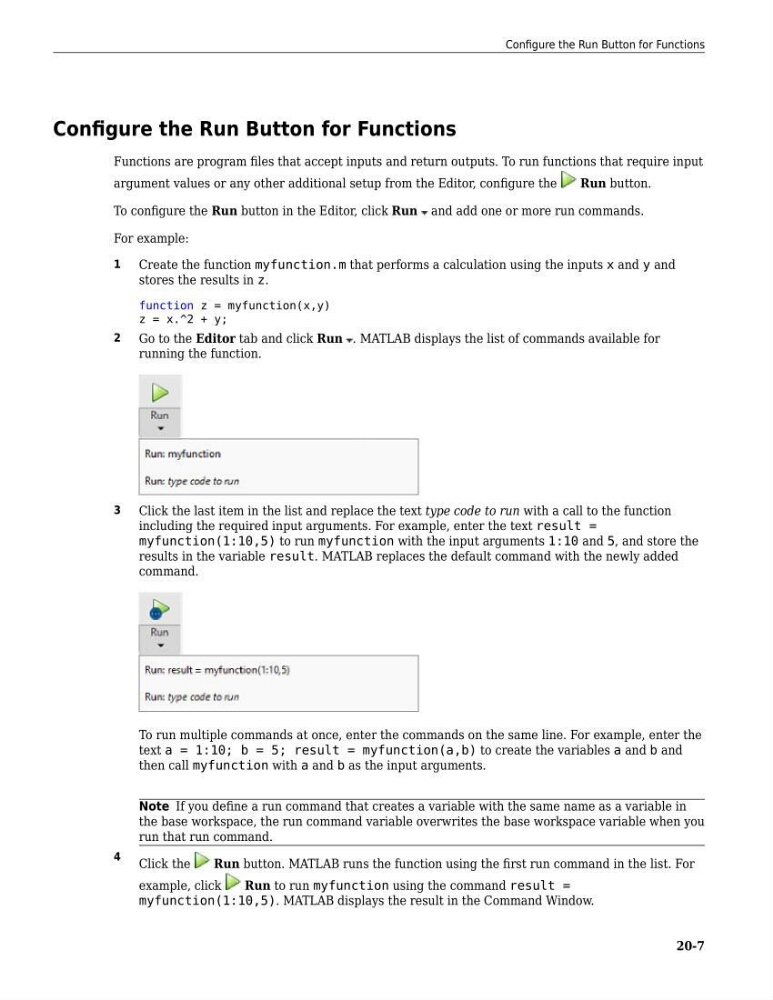
Go to the Editor tab and click Run . MATLAB displays the list of commands available for
running the function.
3
Click the last item in the list and replace the text type code to run with a call to the function
including the required input arguments. For example, enter the text result =
myfunction(1:10,5) to run myfunction with the input arguments 1:10 and 5, and store the
results in the variable result. MATLAB replaces the default command with the newly added
command.
To run multiple commands at once, enter the commands on the same line. For example, enter the
text a = 1:10; b = 5; result = myfunction(a,b) to create the variables a and b and
then call myfunction with a and b as the input arguments.
Note If you define a run command that creates a variable with the same name as a variable in
the base workspace, the run command variable overwrites the base workspace variable when you
run that run command.
4
Click the
Run button. MATLAB runs the function using the first run command in the list. For
example, click
Run to run myfunction using the command result =
myfunction(1:10,5). MATLAB displays the result in the Command Window.
Configure the Run Button for Functions
20-7
Functions are program files that accept inputs and return outputs. To run functions that require input
argument values or any other additional setup from the Editor, configure the
Run button.
To configure the Run button in the Editor, click Run and add one or more run commands.
For example:
1
Create the function myfunction.m that performs a calculation using the inputs x and y and
stores the results in z.
function z = myfunction(x,y)
z = x.^2 + y;
2
Go to the Editor tab and click Run . MATLAB displays the list of commands available for
running the function.
3
Click the last item in the list and replace the text type code to run with a call to the function
including the required input arguments. For example, enter the text result =
myfunction(1:10,5) to run myfunction with the input arguments 1:10 and 5, and store the
results in the variable result. MATLAB replaces the default command with the newly added
command.
To run multiple commands at once, enter the commands on the same line. For example, enter the
text a = 1:10; b = 5; result = myfunction(a,b) to create the variables a and b and
then call myfunction with a and b as the input arguments.
Note If you define a run command that creates a variable with the same name as a variable in
the base workspace, the run command variable overwrites the base workspace variable when you
run that run command.
4
Click the
Run button. MATLAB runs the function using the first run command in the list. For
example, click
Run to run myfunction using the command result =
myfunction(1:10,5). MATLAB displays the result in the Command Window.
Configure the Run Button for Functions
20-7