

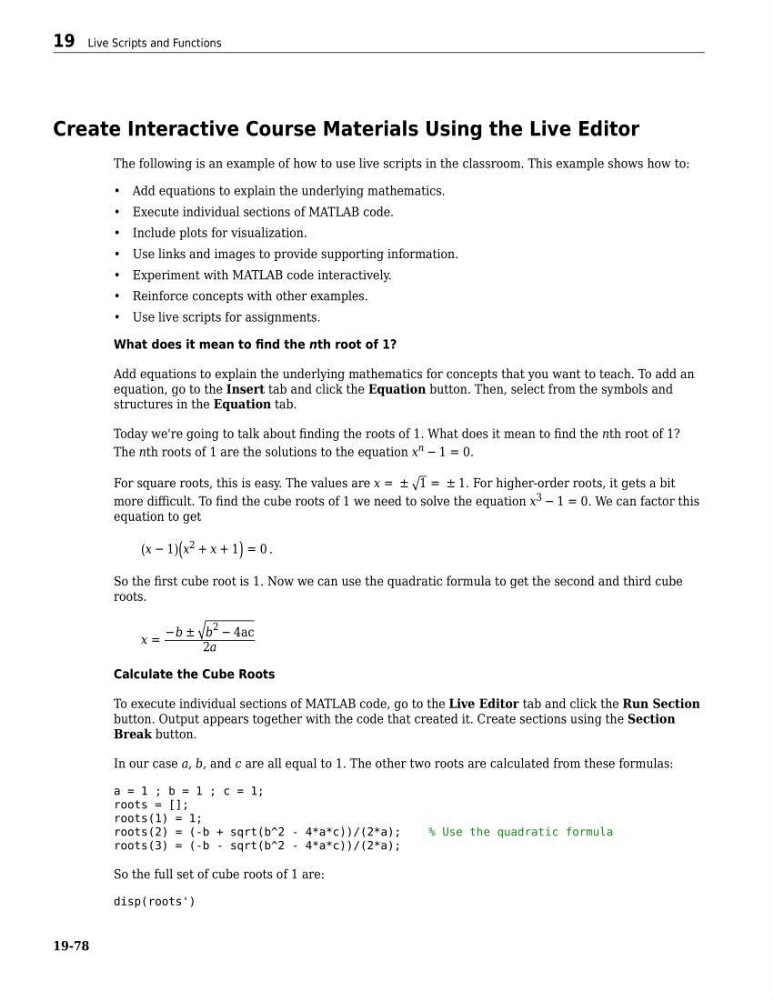
Create Interactive Course Materials Using the Live Editor
The following is an example of how to use live scripts in the classroom. This example shows how to:
• Add equations to explain the underlying mathematics.
• Execute individual sections of MATLAB code.
• Include plots for visualization.
• Use links and images to provide supporting information.
• Experiment with MATLAB code interactively.
• Reinforce concepts with other examples.
• Use live scripts for assignments.
What does it mean to find the nth root of 1?
Add equations to explain the underlying mathematics for concepts that you want to teach. To add an
equation, go to the Insert tab and click the Equation button. Then, select from the symbols and
structures in the Equation tab.
Today we're going to talk about finding the roots of 1. What does it mean to find the nth root of 1?
The nth roots of 1 are the solutions to the equation x n − 1 = 0.
For square roots, this is easy. The values are x = ± 1 = ± 1. For higher-order roots, it gets a bit
more difficult. To find the cube roots of 1 we need to solve the equation x 3 − 1 = 0. We can factor this
equation to get
x − 1 x 2 + x + 1 = 0 .
So the first cube root is 1. Now we can use the quadratic formula to get the second and third cube
roots.
x =
−b ± b
2 − 4ac
2a
Calculate the Cube Roots
To execute individual sections of MATLAB code, go to the Live Editor tab and click the Run Section
button. Output appears together with the code that created it. Create sections using the Section
Break button.
In our case a, b, and c are all equal to 1. The other two roots are calculated from these formulas:
a = 1 ; b = 1 ; c = 1;
roots = [];
roots(1) = 1;
roots(2) = (-b + sqrt(b^2 - 4*a*c))/(2*a);
% Use the quadratic formula
roots(3) = (-b - sqrt(b^2 - 4*a*c))/(2*a);
So the full set of cube roots of 1 are:
disp(roots')
19 Live Scripts and Functions
19-78
The following is an example of how to use live scripts in the classroom. This example shows how to:
• Add equations to explain the underlying mathematics.
• Execute individual sections of MATLAB code.
• Include plots for visualization.
• Use links and images to provide supporting information.
• Experiment with MATLAB code interactively.
• Reinforce concepts with other examples.
• Use live scripts for assignments.
What does it mean to find the nth root of 1?
Add equations to explain the underlying mathematics for concepts that you want to teach. To add an
equation, go to the Insert tab and click the Equation button. Then, select from the symbols and
structures in the Equation tab.
Today we're going to talk about finding the roots of 1. What does it mean to find the nth root of 1?
The nth roots of 1 are the solutions to the equation x n − 1 = 0.
For square roots, this is easy. The values are x = ± 1 = ± 1. For higher-order roots, it gets a bit
more difficult. To find the cube roots of 1 we need to solve the equation x 3 − 1 = 0. We can factor this
equation to get
x − 1 x 2 + x + 1 = 0 .
So the first cube root is 1. Now we can use the quadratic formula to get the second and third cube
roots.
x =
−b ± b
2 − 4ac
2a
Calculate the Cube Roots
To execute individual sections of MATLAB code, go to the Live Editor tab and click the Run Section
button. Output appears together with the code that created it. Create sections using the Section
Break button.
In our case a, b, and c are all equal to 1. The other two roots are calculated from these formulas:
a = 1 ; b = 1 ; c = 1;
roots = [];
roots(1) = 1;
roots(2) = (-b + sqrt(b^2 - 4*a*c))/(2*a);
% Use the quadratic formula
roots(3) = (-b - sqrt(b^2 - 4*a*c))/(2*a);
So the full set of cube roots of 1 are:
disp(roots')
19 Live Scripts and Functions
19-78