

Share Live Scripts and Functions
You can share live scripts and functions with others for teaching or demonstration purposes, or to
provide readable, external documentation of your code. You can share the files with other MATLAB
users, or you can share static PDF, Microsoft Word, HTML, and LaTeX versions of the files for viewing
outside of MATLAB.
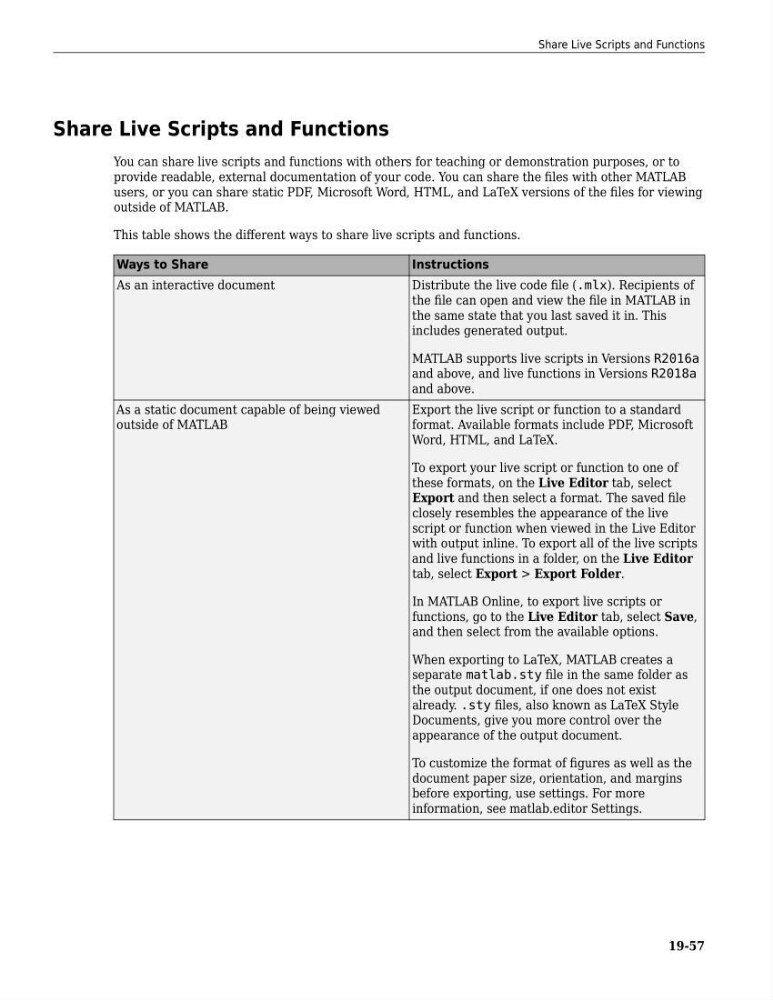
This table shows the different ways to share live scripts and functions.
Ways to Share
Instructions
As an interactive document
Distribute the live code file (.mlx). Recipients of
the file can open and view the file in MATLAB in
the same state that you last saved it in. This
includes generated output.
MATLAB supports live scripts in Versions R2016a
and above, and live functions in Versions R2018a
and above.
As a static document capable of being viewed
outside of MATLAB
Export the live script or function to a standard
format. Available formats include PDF, Microsoft
Word, HTML, and LaTeX.
To export your live script or function to one of
these formats, on the Live Editor tab, select
Export and then select a format. The saved file
closely resembles the appearance of the live
script or function when viewed in the Live Editor
with output inline. To export all of the live scripts
and live functions in a folder, on the Live Editor
tab, select Export > Export Folder.
In MATLAB Online, to export live scripts or
functions, go to the Live Editor tab, select Save,
and then select from the available options.
When exporting to LaTeX, MATLAB creates a
separate matlab.sty file in the same folder as
the output document, if one does not exist
already. .sty files, also known as LaTeX Style
Documents, give you more control over the
appearance of the output document.
To customize the format of figures as well as the
document paper size, orientation, and margins
before exporting, use settings. For more
information, see matlab.editor Settings.
Share Live Scripts and Functions
19-57
You can share live scripts and functions with others for teaching or demonstration purposes, or to
provide readable, external documentation of your code. You can share the files with other MATLAB
users, or you can share static PDF, Microsoft Word, HTML, and LaTeX versions of the files for viewing
outside of MATLAB.
This table shows the different ways to share live scripts and functions.
Ways to Share
Instructions
As an interactive document
Distribute the live code file (.mlx). Recipients of
the file can open and view the file in MATLAB in
the same state that you last saved it in. This
includes generated output.
MATLAB supports live scripts in Versions R2016a
and above, and live functions in Versions R2018a
and above.
As a static document capable of being viewed
outside of MATLAB
Export the live script or function to a standard
format. Available formats include PDF, Microsoft
Word, HTML, and LaTeX.
To export your live script or function to one of
these formats, on the Live Editor tab, select
Export and then select a format. The saved file
closely resembles the appearance of the live
script or function when viewed in the Live Editor
with output inline. To export all of the live scripts
and live functions in a folder, on the Live Editor
tab, select Export > Export Folder.
In MATLAB Online, to export live scripts or
functions, go to the Live Editor tab, select Save,
and then select from the available options.
When exporting to LaTeX, MATLAB creates a
separate matlab.sty file in the same folder as
the output document, if one does not exist
already. .sty files, also known as LaTeX Style
Documents, give you more control over the
appearance of the output document.
To customize the format of figures as well as the
document paper size, orientation, and margins
before exporting, use settings. For more
information, see matlab.editor Settings.
Share Live Scripts and Functions
19-57