

CHAPTER 4 ■ COMPLEX FLOWS: NODE-RED
61
Set the URL property to /lightSensorTweet . This URL will be prepended by the
Node-RED server and port. The Node-RED server used in this project is available at
10.0.0.6:1880 , so Arduino will send data to 10.0.0.6:1880/lightSensorTweet .
Finally, each node can be given a custom name that describes the task it performs.
Call this node Receive HTTP Request .
Click OK to make the updates.
Data coming from the device using HTTP is in string format, so you need to convert
it into a number. Drag and drop a function node and place it in the Flow tab after the
Receive HTTP Request node. A function node lets you write code to manipulate payload.
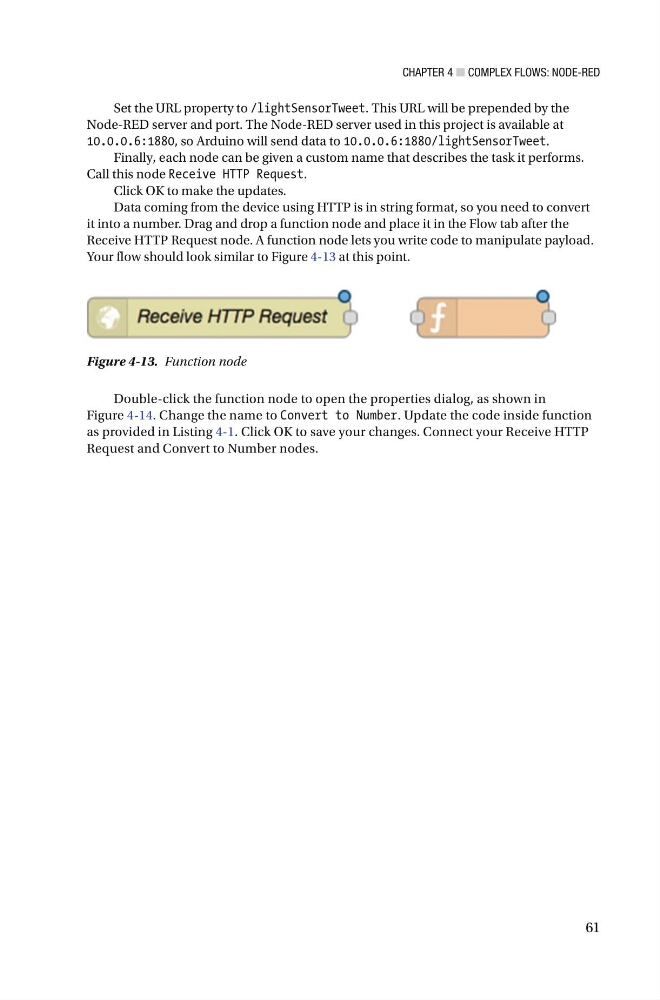
Your flow should look similar to Figure 4-13 at this point.
Figure 4-13. Function node
Double-click the function node to open the properties dialog, as shown in
Figure 4-14 . Change the name to Convert to Number . Update the code inside function
as provided in Listing 4-1 . Click OK to save your changes. Connect your Receive HTTP
Request and Convert to Number nodes.
61
Set the URL property to /lightSensorTweet . This URL will be prepended by the
Node-RED server and port. The Node-RED server used in this project is available at
10.0.0.6:1880 , so Arduino will send data to 10.0.0.6:1880/lightSensorTweet .
Finally, each node can be given a custom name that describes the task it performs.
Call this node Receive HTTP Request .
Click OK to make the updates.
Data coming from the device using HTTP is in string format, so you need to convert
it into a number. Drag and drop a function node and place it in the Flow tab after the
Receive HTTP Request node. A function node lets you write code to manipulate payload.
Your flow should look similar to Figure 4-13 at this point.
Figure 4-13. Function node
Double-click the function node to open the properties dialog, as shown in
Figure 4-14 . Change the name to Convert to Number . Update the code inside function
as provided in Listing 4-1 . Click OK to save your changes. Connect your Receive HTTP
Request and Convert to Number nodes.