

CHAPTER 12 ■ IOT PLATFORMS
271
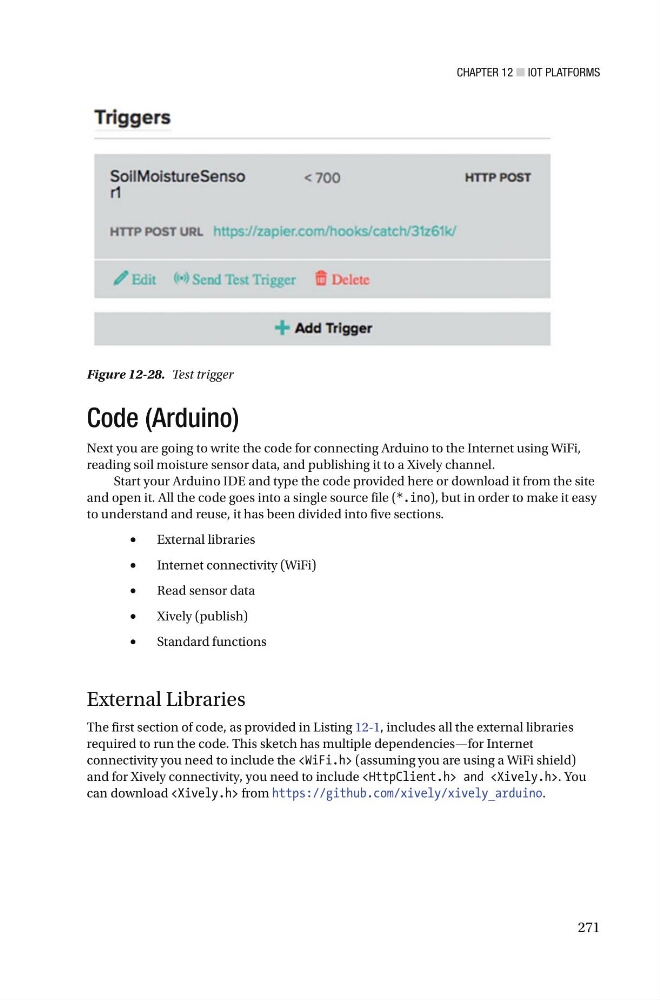
Figure 12-28. Test trigger
Code (Arduino)
Next you are going to write the code for connecting Arduino to the Internet using WiFi,
reading soil moisture sensor data, and publishing it to a Xively channel.
Start your Arduino IDE and type the code provided here or download it from the site
and open it. All the code goes into a single source file ( *.ino ), but in order to make it easy
to understand and reuse, it has been divided into five sections.
•
External libraries
•
Internet connectivity (WiFi)
•
Read sensor data
•
Xively (publish)
•
Standard functions
External Libraries
The first section of code, as provided in Listing 12-1 , includes all the external libraries
required to run the code. This sketch has multiple dependencies—for Internet
connectivity you need to include the (assuming you are using a WiFi shield)
and for Xively connectivity, you need to include and . You
can download from https://github.com/xively/xively_arduino .
271
Figure 12-28. Test trigger
Code (Arduino)
Next you are going to write the code for connecting Arduino to the Internet using WiFi,
reading soil moisture sensor data, and publishing it to a Xively channel.
Start your Arduino IDE and type the code provided here or download it from the site
and open it. All the code goes into a single source file ( *.ino ), but in order to make it easy
to understand and reuse, it has been divided into five sections.
•
External libraries
•
Internet connectivity (WiFi)
•
Read sensor data
•
Xively (publish)
•
Standard functions
External Libraries
The first section of code, as provided in Listing 12-1 , includes all the external libraries
required to run the code. This sketch has multiple dependencies—for Internet
connectivity you need to include the
and for Xively connectivity, you need to include
can download