

CHAPTER 5 ■ IOT PATTERNS: REALTIME CLIENTS
90
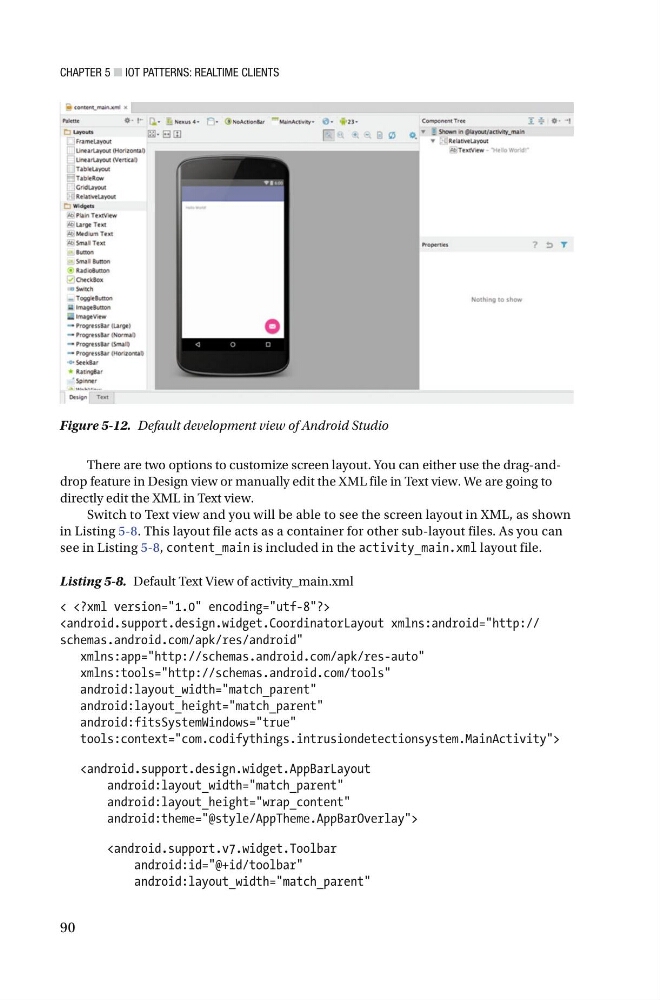
There are two options to customize screen layout. You can either use the drag-anddrop feature in Design view or manually edit the XML file in Text view. We are going to
directly edit the XML in Text view.
Switch to Text view and you will be able to see the screen layout in XML, as shown
in Listing 5-8 . This layout file acts as a container for other sub-layout files. As you can
see in Listing 5-8 , content_main is included in the activity_main.xml layout file.
Listing 5-8. Default Text View of activity_main.xml
<
xmlns:tools="http://schemas.android.com/tools"
android:layout_width="match_parent"
android:layout_height="match_parent"
android:fitsSystemWindows="true"
tools:context="com.codifythings.intrusiondetectionsystem.MainActivity">
android:layout_height="wrap_content"
android:theme="@style/AppTheme.AppBarOverlay">
android:layout_width="match_parent"
Figure 5-12. Default development view of Android Studio
90
There are two options to customize screen layout. You can either use the drag-anddrop feature in Design view or manually edit the XML file in Text view. We are going to
directly edit the XML in Text view.
Switch to Text view and you will be able to see the screen layout in XML, as shown
in Listing 5-8 . This layout file acts as a container for other sub-layout files. As you can
see in Listing 5-8 , content_main is included in the activity_main.xml layout file.
Listing 5-8. Default Text View of activity_main.xml
<
xmlns:tools="http://schemas.android.com/tools"
android:layout_width="match_parent"
android:layout_height="match_parent"
android:fitsSystemWindows="true"
tools:context="com.codifythings.intrusiondetectionsystem.MainActivity">
android:layout_height="wrap_content"
android:theme="@style/AppTheme.AppBarOverlay">
android:layout_width="match_parent"
Figure 5-12. Default development view of Android Studio