

203
Review on Communication Security Issues in IoT Medical Devices
Instant Contiki supports developers to use all in-build services to understand the
process in easy way.
2. Downloading Instant Contiki
Contiki is a large file, greater than 1 gigabyte. Once downloaded, unzip the file,
and place the unzipped directory on the desktop. Instant Contiki can be downloaded from the bellow link.
http://sourceforge.net/projects/contiki/files/Instant%20Contiki/
3. Installing VMware Player
Download and install VMware player. It is free to download but requires a
registration. It might require a reboot of your computer, which is unfortunate but
needed to get the network working.
Download from the link https://download3.vmware.com/software/player/file/
VMware-player-12.5.0-4352439.exe for Windows.
Download from the link https://download3.vmware.com/software/player/file/
VMware-Player-12.5.0-4352439.x86_64.bundle for Linux.
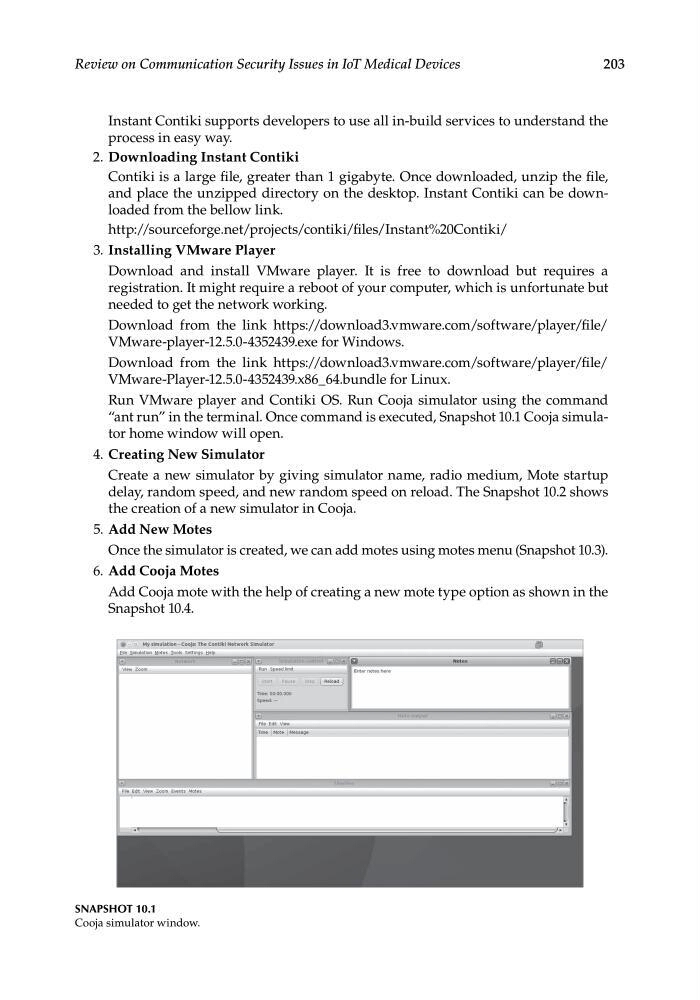
Run VMware player and Contiki OS. Run Cooja simulator using the command
“ant run” in the terminal. Once command is executed, Snapshot 10.1 Cooja simulator home window will open.
4. Creating New Simulator
Create a new simulator by giving simulator name, radio medium, Mote startup
delay, random speed, and new random speed on reload. The Snapshot 10.2 shows
the creation of a new simulator in Cooja.
5. Add New Motes
Once the simulator is created, we can add motes using motes menu (Snapshot 10.3).
6. Add Cooja Motes
Add Cooja mote with the help of creating a new mote type option as shown in the
Snapshot 10.4.
SNAPSHOT 10.1
Cooja simulator window.
Review on Communication Security Issues in IoT Medical Devices
Instant Contiki supports developers to use all in-build services to understand the
process in easy way.
2. Downloading Instant Contiki
Contiki is a large file, greater than 1 gigabyte. Once downloaded, unzip the file,
and place the unzipped directory on the desktop. Instant Contiki can be downloaded from the bellow link.
http://sourceforge.net/projects/contiki/files/Instant%20Contiki/
3. Installing VMware Player
Download and install VMware player. It is free to download but requires a
registration. It might require a reboot of your computer, which is unfortunate but
needed to get the network working.
Download from the link https://download3.vmware.com/software/player/file/
VMware-player-12.5.0-4352439.exe for Windows.
Download from the link https://download3.vmware.com/software/player/file/
VMware-Player-12.5.0-4352439.x86_64.bundle for Linux.
Run VMware player and Contiki OS. Run Cooja simulator using the command
“ant run” in the terminal. Once command is executed, Snapshot 10.1 Cooja simulator home window will open.
4. Creating New Simulator
Create a new simulator by giving simulator name, radio medium, Mote startup
delay, random speed, and new random speed on reload. The Snapshot 10.2 shows
the creation of a new simulator in Cooja.
5. Add New Motes
Once the simulator is created, we can add motes using motes menu (Snapshot 10.3).
6. Add Cooja Motes
Add Cooja mote with the help of creating a new mote type option as shown in the
Snapshot 10.4.
SNAPSHOT 10.1
Cooja simulator window.