

Menus and Messages
Step #3: Define the Option Menu
Now, we need to create an option menu and arrange for it to be displayed
when the user clicks the [MENU] button.
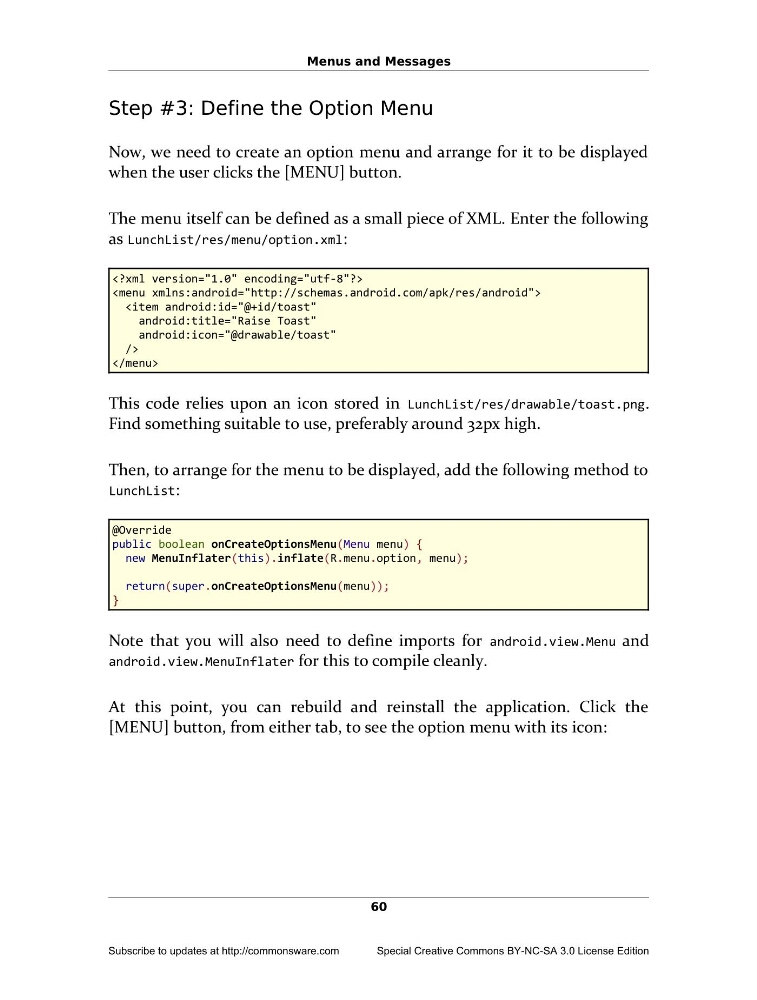
The menu itself can be defined as a small piece of XML. Enter the following
as LunchList/res/menu/option.xml:
This code relies upon an icon stored in LunchList/res/drawable/toast.png.
Find something suitable to use, preferably around 32px high.
Then, to arrange for the menu to be displayed, add the following method to
LunchList:
@Override
public boolean onCreateOptionsMenu(Menu menu) {
new MenuInflater(this).inflate(R.menu.option, menu);
return(super.onCreateOptionsMenu(menu));
}
Note that you will also need to define imports for android.view.Menu and
android.view.MenuInflater for this to compile cleanly.
At this point, you can rebuild and reinstall the application. Click the
[MENU] button, from either tab, to see the option menu with its icon:
60
Subscribe to updates at http://commonsware.com
Special Creative Commons BY-NC-SA 3.0 License Edition
Step #3: Define the Option Menu
Now, we need to create an option menu and arrange for it to be displayed
when the user clicks the [MENU] button.
The menu itself can be defined as a small piece of XML. Enter the following
as LunchList/res/menu/option.xml:
This code relies upon an icon stored in LunchList/res/drawable/toast.png.
Find something suitable to use, preferably around 32px high.
Then, to arrange for the menu to be displayed, add the following method to
LunchList:
@Override
public boolean onCreateOptionsMenu(Menu menu) {
new MenuInflater(this).inflate(R.menu.option, menu);
return(super.onCreateOptionsMenu(menu));
}
Note that you will also need to define imports for android.view.Menu and
android.view.MenuInflater for this to compile cleanly.
At this point, you can rebuild and reinstall the application. Click the
[MENU] button, from either tab, to see the option menu with its icon:
60
Subscribe to updates at http://commonsware.com
Special Creative Commons BY-NC-SA 3.0 License Edition