

More Home Cooking
Step #2: Add the Button to the Layout
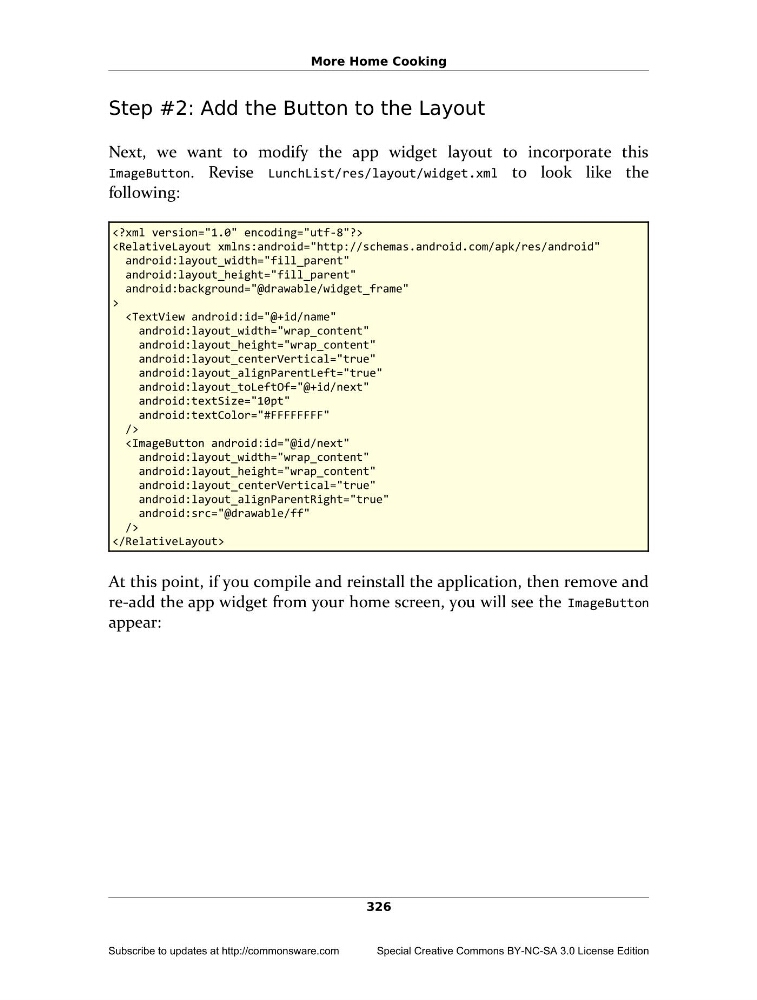
Next, we want to modify the app widget layout to incorporate this
ImageButton. Revise LunchList/res/layout/widget.xml to look like the
following:
android:layout_height="fill_parent"
android:background="@drawable/widget_frame"
>
android:layout_height="wrap_content"
android:layout_centerVertical="true"
android:layout_alignParentLeft="true"
android:layout_toLeftOf="@+id/next"
android:textSize="10pt"
android:textColor="#FFFFFFFF"
/>
android:layout_height="wrap_content"
android:layout_centerVertical="true"
android:layout_alignParentRight="true"
android:src="@drawable/ff"
/>
At this point, if you compile and reinstall the application, then remove and
re-add the app widget from your home screen, you will see the ImageButton
appear:
326
Subscribe to updates at http://commonsware.com
Special Creative Commons BY-NC-SA 3.0 License Edition
Step #2: Add the Button to the Layout
Next, we want to modify the app widget layout to incorporate this
ImageButton. Revise LunchList/res/layout/widget.xml to look like the
following:
android:layout_height="fill_parent"
android:background="@drawable/widget_frame"
>
android:layout_height="wrap_content"
android:layout_centerVertical="true"
android:layout_alignParentLeft="true"
android:layout_toLeftOf="@+id/next"
android:textSize="10pt"
android:textColor="#FFFFFFFF"
/>
android:layout_height="wrap_content"
android:layout_centerVertical="true"
android:layout_alignParentRight="true"
android:src="@drawable/ff"
/>
At this point, if you compile and reinstall the application, then remove and
re-add the app widget from your home screen, you will see the ImageButton
appear:
326
Subscribe to updates at http://commonsware.com
Special Creative Commons BY-NC-SA 3.0 License Edition