

Turn, Turn, Turn
Step #2: Pour the Form Into the Bundle
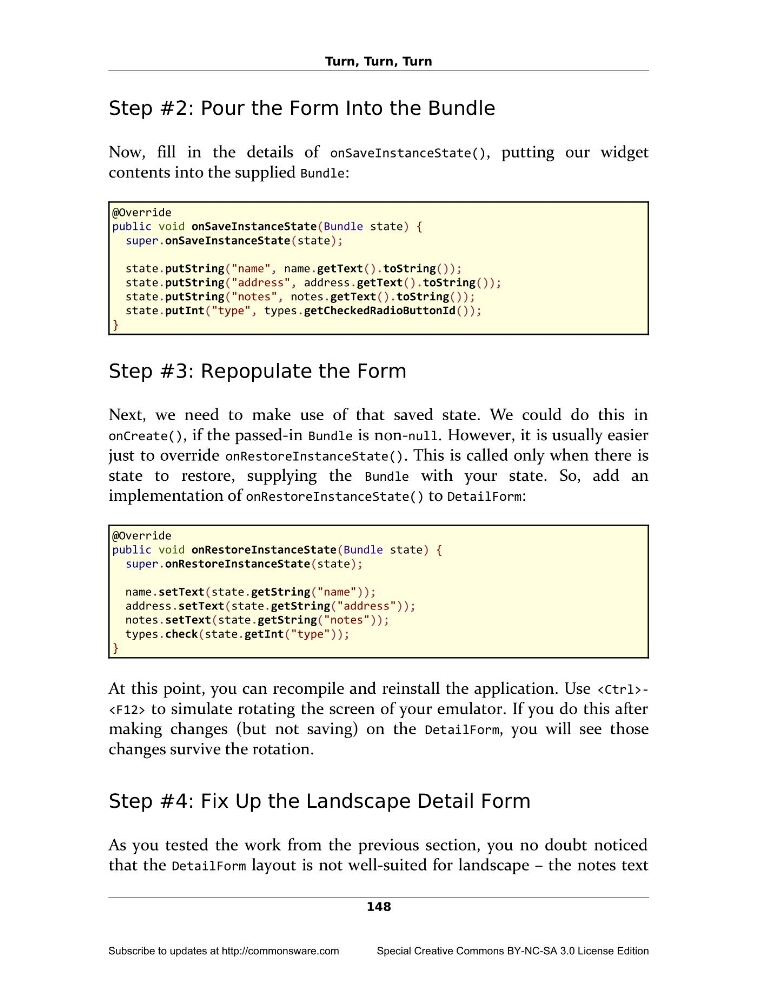
Now, fill in the details of onSaveInstanceState(), putting our widget
contents into the supplied Bundle:
@Override
public void onSaveInstanceState(Bundle state) {
super.onSaveInstanceState(state);
state.putString("name", name.getText().toString());
state.putString("address", address.getText().toString());
state.putString("notes", notes.getText().toString());
state.putInt("type", types.getCheckedRadioButtonId());
}
Step #3: Repopulate the Form
Next, we need to make use of that saved state. We could do this in
onCreate(), if the passed-in Bundle is non-null. However, it is usually easier
just to override onRestoreInstanceState(). This is called only when there is
state to restore, supplying the Bundle with your state. So, add an
implementation of onRestoreInstanceState() to DetailForm:
@Override
public void onRestoreInstanceState(Bundle state) {
super.onRestoreInstanceState(state);
name.setText(state.getString("name"));
address.setText(state.getString("address"));
notes.setText(state.getString("notes"));
types.check(state.getInt("type"));
}
At this point, you can recompile and reinstall the application. Use to simulate rotating the screen of your emulator. If you do this after
making changes (but not saving) on the DetailForm, you will see those
changes survive the rotation.
Step #4: Fix Up the Landscape Detail Form
As you tested the work from the previous section, you no doubt noticed
that the DetailForm layout is not well-suited for landscape – the notes text
148
Subscribe to updates at http://commonsware.com
Special Creative Commons BY-NC-SA 3.0 License Edition
Step #2: Pour the Form Into the Bundle
Now, fill in the details of onSaveInstanceState(), putting our widget
contents into the supplied Bundle:
@Override
public void onSaveInstanceState(Bundle state) {
super.onSaveInstanceState(state);
state.putString("name", name.getText().toString());
state.putString("address", address.getText().toString());
state.putString("notes", notes.getText().toString());
state.putInt("type", types.getCheckedRadioButtonId());
}
Step #3: Repopulate the Form
Next, we need to make use of that saved state. We could do this in
onCreate(), if the passed-in Bundle is non-null. However, it is usually easier
just to override onRestoreInstanceState(). This is called only when there is
state to restore, supplying the Bundle with your state. So, add an
implementation of onRestoreInstanceState() to DetailForm:
@Override
public void onRestoreInstanceState(Bundle state) {
super.onRestoreInstanceState(state);
name.setText(state.getString("name"));
address.setText(state.getString("address"));
notes.setText(state.getString("notes"));
types.check(state.getInt("type"));
}
At this point, you can recompile and reinstall the application. Use
making changes (but not saving) on the DetailForm, you will see those
changes survive the rotation.
Step #4: Fix Up the Landscape Detail Form
As you tested the work from the previous section, you no doubt noticed
that the DetailForm layout is not well-suited for landscape – the notes text
148
Subscribe to updates at http://commonsware.com
Special Creative Commons BY-NC-SA 3.0 License Edition