

75
8.4
Really Need Equations?
As mentioned in Sect. 8.1, you should avoid equations as much as possible in your
slide deck. But if mathematical development is central and critical to your work,
take advantage of existing software tools to “type” equations directly on the
computer.
If your slide presentation software (PowerPoint or other) has a built-in equation
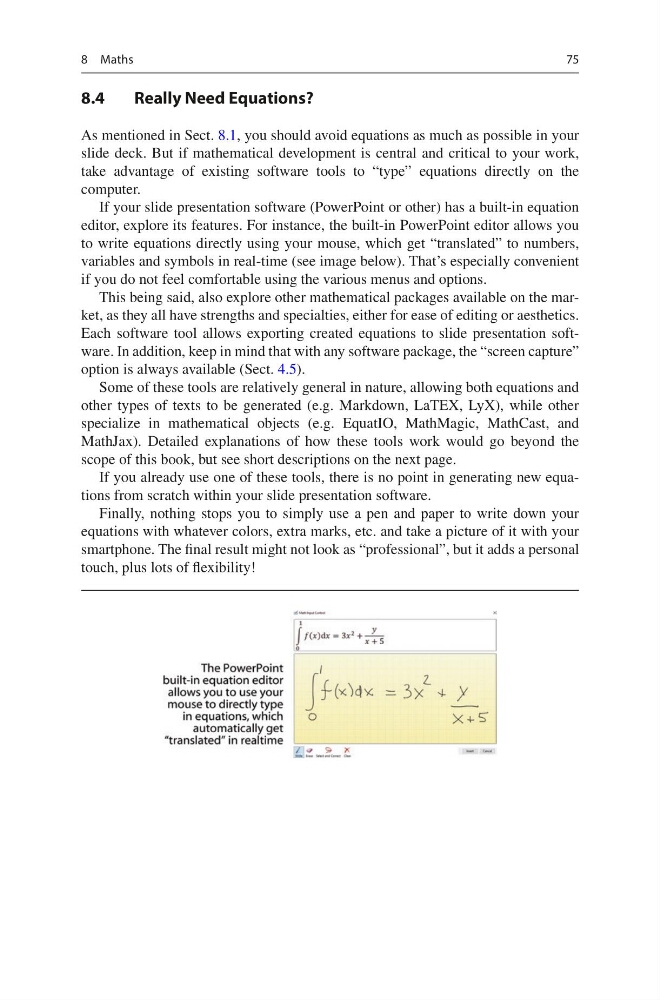
editor, explore its features. For instance, the built-in PowerPoint editor allows you
to write equations directly using your mouse, which get “translated” to numbers,
variables and symbols in real-time (see image below). That’s especially convenient
if you do not feel comfortable using the various menus and options.
This being said, also explore other mathematical packages available on the market, as they all have strengths and specialties, either for ease of editing or aesthetics.
Each software tool allows exporting created equations to slide presentation software. In addition, keep in mind that with any software package, the “screen capture”
option is always available (Sect. 4.5).
Some of these tools are relatively general in nature, allowing both equations and
other types of texts to be generated (e.g. Markdown, LaTEX, LyX), while other
specialize in mathematical objects (e.g. EquatIO, MathMagic, MathCast, and
MathJax). Detailed explanations of how these tools work would go beyond the
scope of this book, but see short descriptions on the next page.
If you already use one of these tools, there is no point in generating new equations from scratch within your slide presentation software.
Finally, nothing stops you to simply use a pen and paper to write down your
equations with whatever colors, extra marks, etc. and take a picture of it with your
smartphone. The final result might not look as “professional”, but it adds a personal
touch, plus lots of flexibility!
8 Maths
8.4
Really Need Equations?
As mentioned in Sect. 8.1, you should avoid equations as much as possible in your
slide deck. But if mathematical development is central and critical to your work,
take advantage of existing software tools to “type” equations directly on the
computer.
If your slide presentation software (PowerPoint or other) has a built-in equation
editor, explore its features. For instance, the built-in PowerPoint editor allows you
to write equations directly using your mouse, which get “translated” to numbers,
variables and symbols in real-time (see image below). That’s especially convenient
if you do not feel comfortable using the various menus and options.
This being said, also explore other mathematical packages available on the market, as they all have strengths and specialties, either for ease of editing or aesthetics.
Each software tool allows exporting created equations to slide presentation software. In addition, keep in mind that with any software package, the “screen capture”
option is always available (Sect. 4.5).
Some of these tools are relatively general in nature, allowing both equations and
other types of texts to be generated (e.g. Markdown, LaTEX, LyX), while other
specialize in mathematical objects (e.g. EquatIO, MathMagic, MathCast, and
MathJax). Detailed explanations of how these tools work would go beyond the
scope of this book, but see short descriptions on the next page.
If you already use one of these tools, there is no point in generating new equations from scratch within your slide presentation software.
Finally, nothing stops you to simply use a pen and paper to write down your
equations with whatever colors, extra marks, etc. and take a picture of it with your
smartphone. The final result might not look as “professional”, but it adds a personal
touch, plus lots of flexibility!
8 Maths