

65
7.2
Create Tables “Externally”
The PowerPoint built-in table creation tools lack the flexibility and advanced features from Excel. Moreover, if you already have Excel tables, you might not feel
like re-building them. As such, feel free to import Excel tables in your
presentations.
Three ways to “import” Excel tables in PowerPoint:
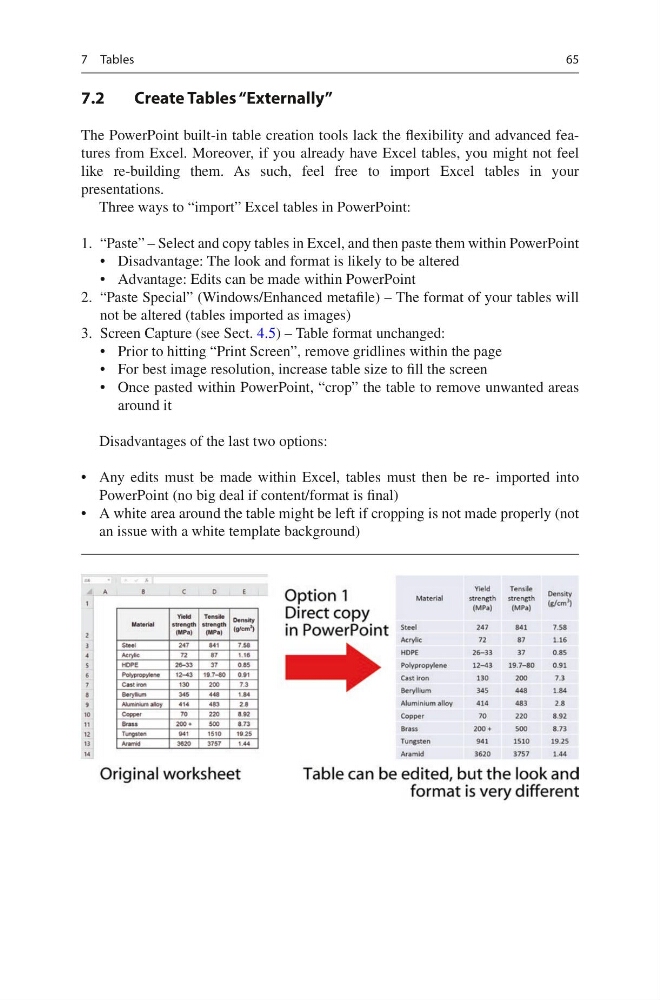
1. “Paste” – Select and copy tables in Excel, and then paste them within PowerPoint
• Disadvantage: The look and format is likely to be altered
• Advantage: Edits can be made within PowerPoint
2. “Paste Special” (Windows/Enhanced metafile) – The format of your tables will
not be altered (tables imported as images)
3. Screen Capture (see Sect. 4.5) – Table format unchanged:
• Prior to hitting “Print Screen”, remove gridlines within the page
• For best image resolution, increase table size to fill the screen
• Once pasted within PowerPoint, “crop” the table to remove unwanted areas
around it
Disadvantages of the last two options:
• Any edits must be made within Excel, tables must then be re- imported into
PowerPoint (no big deal if content/format is final)
• A white area around the table might be left if cropping is not made properly (not
an issue with a white template background)
7 Tables
7.2
Create Tables “Externally”
The PowerPoint built-in table creation tools lack the flexibility and advanced features from Excel. Moreover, if you already have Excel tables, you might not feel
like re-building them. As such, feel free to import Excel tables in your
presentations.
Three ways to “import” Excel tables in PowerPoint:
1. “Paste” – Select and copy tables in Excel, and then paste them within PowerPoint
• Disadvantage: The look and format is likely to be altered
• Advantage: Edits can be made within PowerPoint
2. “Paste Special” (Windows/Enhanced metafile) – The format of your tables will
not be altered (tables imported as images)
3. Screen Capture (see Sect. 4.5) – Table format unchanged:
• Prior to hitting “Print Screen”, remove gridlines within the page
• For best image resolution, increase table size to fill the screen
• Once pasted within PowerPoint, “crop” the table to remove unwanted areas
around it
Disadvantages of the last two options:
• Any edits must be made within Excel, tables must then be re- imported into
PowerPoint (no big deal if content/format is final)
• A white area around the table might be left if cropping is not made properly (not
an issue with a white template background)
7 Tables